'%20transform='translate(-788%20-146)'%3e%3cpath%20d='M20.7111%2010.7111C20.7111%2016.234%2016.234%2020.7111%2010.7111%2020.7111%205.18826%2020.7111%200.71111%2016.234%200.71111%2010.7111%200.71111%205.18826%205.18826%200.71111%2010.7111%200.71111%2016.234%200.71111%2020.7111%205.18826%2020.7111%2010.7111Z'%20fill='%234763FF'%20transform='matrix(1%200%200%201.05%20787.289%20145.253)'/%3e%3cpath%20d='M3.185%2011.6806C2.12333%2011.755%201.06167%2011.8615%200%2012%200.130556%2011.2428%200.236481%2010.4857%200.317778%209.72889%200.448333%208.52167%201.09333%207.69778%202.32278%207.66833%202.98944%207.64889%203.6563%207.63389%204.32333%207.62333%204.99%207.61333%205.28444%207.95278%205.27167%208.58111%205.26333%208.96111%205.25333%209.3413%205.24167%209.72167%205.21%2010.8917%204.63833%2011.5806%203.185%2011.68Z'%20fill='%23FFFFFF'%20transform='matrix(1%200%200%201.05%20791.111%20150.2)'/%3e%3cpath%20d='M8.48444%2011.5739C7.09667%2011.5361%206.49778%2010.8939%206.51278%209.70444%206.51778%209.00389%206.52148%208.30333%206.52389%207.60278%206.525%207.11278%206.45167%206.86111%206.24611%206.65611%206.05944%206.46889%205.81444%206.37667%205.29889%206.37778%204.31667%206.38%203.33426%206.38444%202.35167%206.39111%201.08389%206.40611%200.537778%205.71556%200.481111%204.40667%200.412859%202.92918%200.252174%201.45741-8.47711e-09-1.69542e-08%201.77444%200.231667%203.54889%200.373889%205.32333%200.426667%206.48056%200.461111%207.30667%201.28%207.29111%202.29611%207.28611%202.99667%207.28241%203.69722%207.28%204.39778%207.27889%204.78944%207.35167%205.13944%207.55778%205.34444%207.74444%205.53167%207.97889%205.62389%208.505%205.62278%209.48722%205.62056%2010.4696%205.61611%2011.4522%205.60944%2012.8106%205.58056%2013.2661%206.28611%2013.3228%207.59667%2013.391%209.07342%2013.5517%2010.5444%2013.8039%2012.0011%2012.0306%2011.77%2010.2574%2011.628%208.48444%2011.575Z'%20fill='%23FFFFFF'%20transform='matrix(1%200%200%201.05%20791.111%20150.2)'/%3e%3cpath%20d='M11.4817%204.33167C10.8144%204.35111%2010.1474%204.36611%209.48056%204.37667%208.87167%204.38556%208.52%204.05611%208.53222%203.42722%208.54056%203.04389%208.55056%202.66074%208.56222%202.27778%208.59333%201.09222%209.28944%200.412222%2010.6189%200.319444%2011.6804%200.245%2012.742%200.138519%2013.8039%200%2013.6733%200.757222%2013.5674%201.51426%2013.4861%202.27111%2013.3489%203.56333%2012.8794%204.29556%2011.4811%204.33167Z'%20fill='%23FFFFFF'%20transform='matrix(1%200%200%201.05%20791.111%20150.2)'/%3e%3c/g%3e%3c/svg%3e) BLADE
BLADE 
1. How do I Connect Blade to QuickBooks?
- Go to pricing to signup for a Blade subscription.
- Simply Connect your company to QuickBooks when prompted during onboarding!
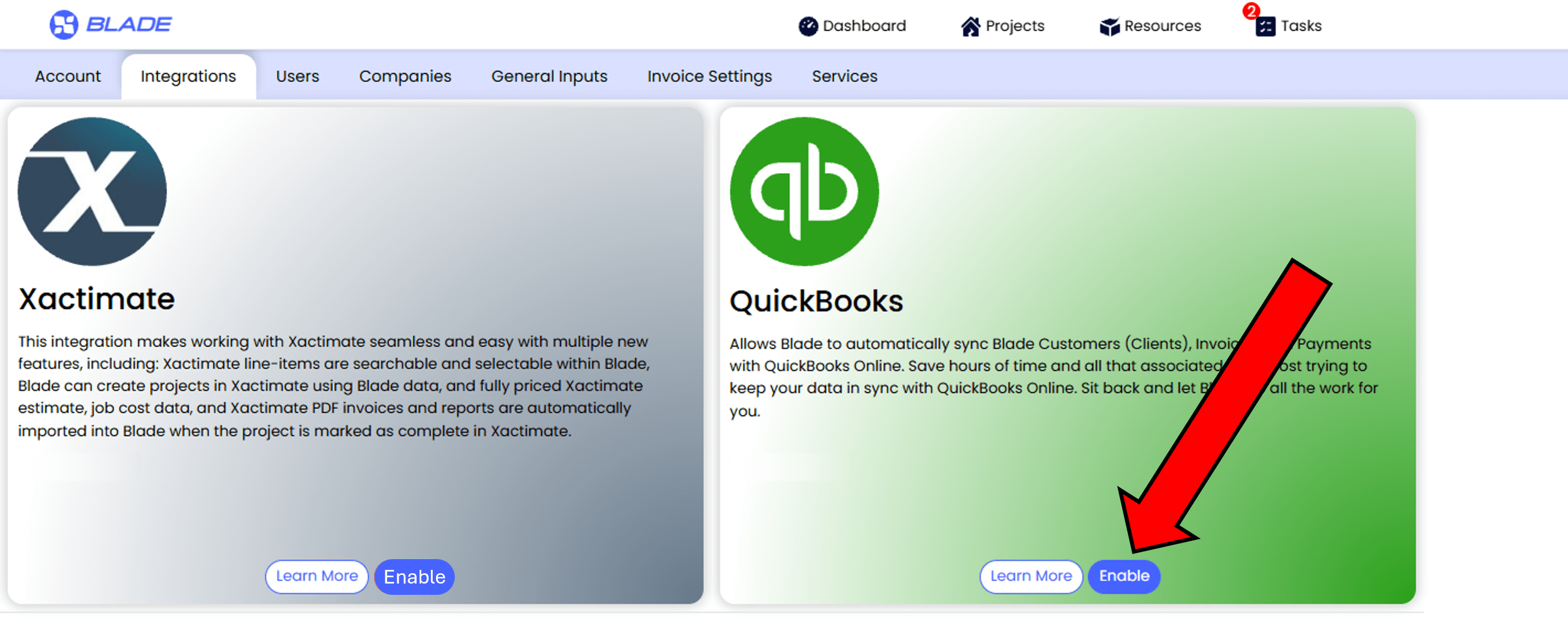
- Log in to Blade. Account Administrators can navigate to Account Settings, click the Integrations tab, and select 'Enable' on the QuickBooks Online tile. This will allow users with company admin access to connect their company to QuickBooks Online.
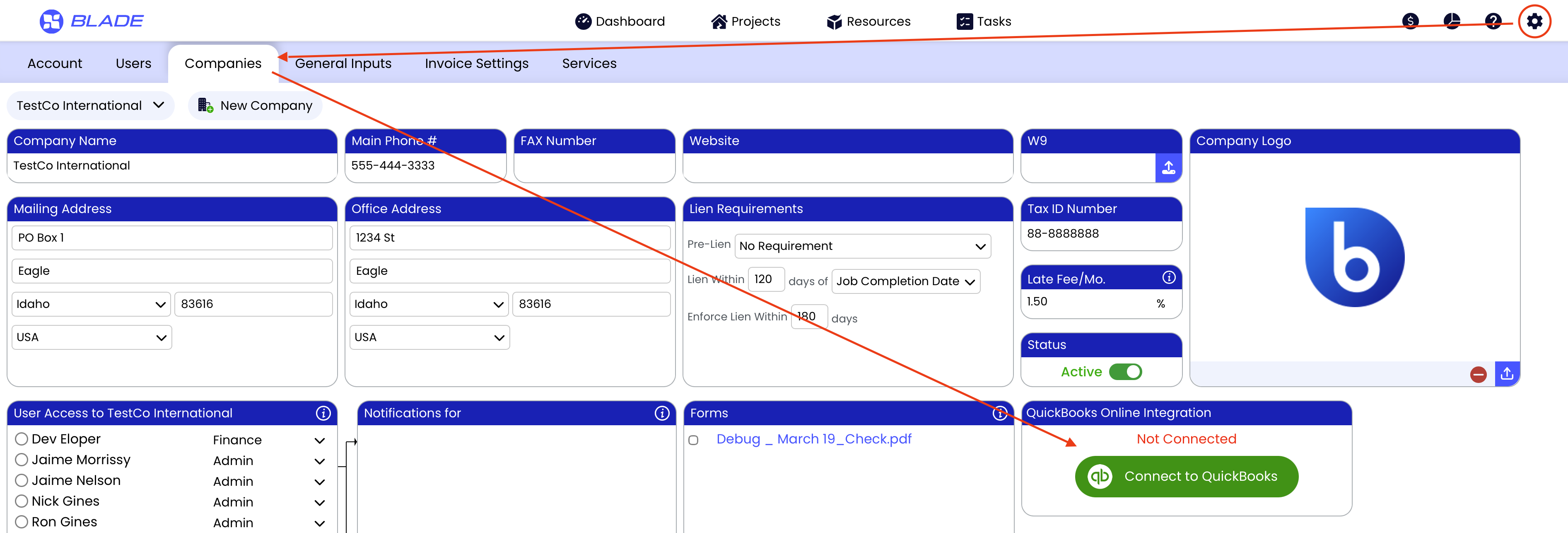
- Click on the Companies tab, and choose the target company.
- Then select the Connect to QuickBooks button
- After connecting to your QuickBooks account as prompted during the Enable process, a list of job trades
will be displayed with a list of Income Accounts populated by Income Accounts within your QuickBooks
instance.
Example: If you have a Water Damage Mitigation job in Blade, the invoice for that job can be tagged to
the QuickBooks income account you use to track water damage mitigation income.
If you have have Hazardous Material Remediation job in Blade (such as Asbestos Abatement), the
invoice for that job can be tagged to the QuickBooks income account you us to track asbestos
abatement income, etc.!
2. What does the QuickBooks Online Integration do in Blade?
Blade automatically syncs Blade Customers (Clients). When you add a new Customer to Blade, the Customer is automatically created in QuickBooks Online. As you edit Customer information in Blade, changes are automatically sync'ed in QuickBooks Customer data When you edit Customer data in QuickBooks, those changes are automatically made in Blade!
When you add a new invoice in Blade, an invoice is automatically created in QuickBooks! Changes to the invoice in Blade are kept in sync in QuickBooks!
When you enter payment data for any given invoice in Blade, those same payment entries are made in QuickBooks, and vice versa! Changes to payments in QuickBooks or Blade are kept in sync in both tools!
That’s it! Save of time and all that associated labor cost trying to keep your restoration software in sync with QuickBooks Online. Sit back and let Blade do all the work for you!
3. How Much Does the Integration Cost?
This integration charges $1.90 per job synced with QuickBooks. All new jobs are automatically synced, and you can choose to manually sync jobs that were created before enabling the integration.
Learn more about the QuickBooks Online integration on Blade’s Support Center Help page!